 Lading
Every box, on the truck and off it.
Lading is an iPhone app for tracking a move. Photograph each box, print a label in its room's color, scan it onto the truck and off again, and see exactly what's missing.
Free beta on TestFlight. For iPhone, iOS 26.0 or later. No account, no ads, no tracking.
Sample labels. Yours print in the colors you choose for each room.
How a move works
- Add your roomsEach room gets its own color and a short code.
- Photograph each boxShow the contents, pick the room, save. Lading numbers the box for you.
- Print labelsTwo per box. A big number, the room color and a QR code.
- Load the truckTap Start Loading, then scan each label as the box goes on.
- Unload and checkScan each box off at the new home. Anything missing is listed for you.
What's in it
- Photos of the open box
- Up to five per box. Lading suggests a short description such as Kitchen or Books, worked out on your iPhone. Use it, change it, or type your own.
- Room colors
- Every room has a color and a short code. Color is never the only clue: the room name and code are always printed beside it.
- Labels that scan
- A large box number like 7 of 42, a QR code on a white panel, and the room color. Print on Avery 5164-style sticker sheets, plain Letter paper or 4×6 thermal labels.
- Scan on, scan off
- Each scan records the time and the vehicle. A box scanned twice isn't counted twice. A label that isn't in your list can be added as a new box on the spot.
- Door signs
- One big sign per room, in the room's color, to tape up at the new home before you unload.
- A missing list
- Every box that was loaded but never scanned off, grouped by room, with the vehicle it was on.
- Priority and Fragile
- Flags that show on the label so the right boxes get opened first and handled gently.
On your iPhone
- Screenshot: Before the truck leaves
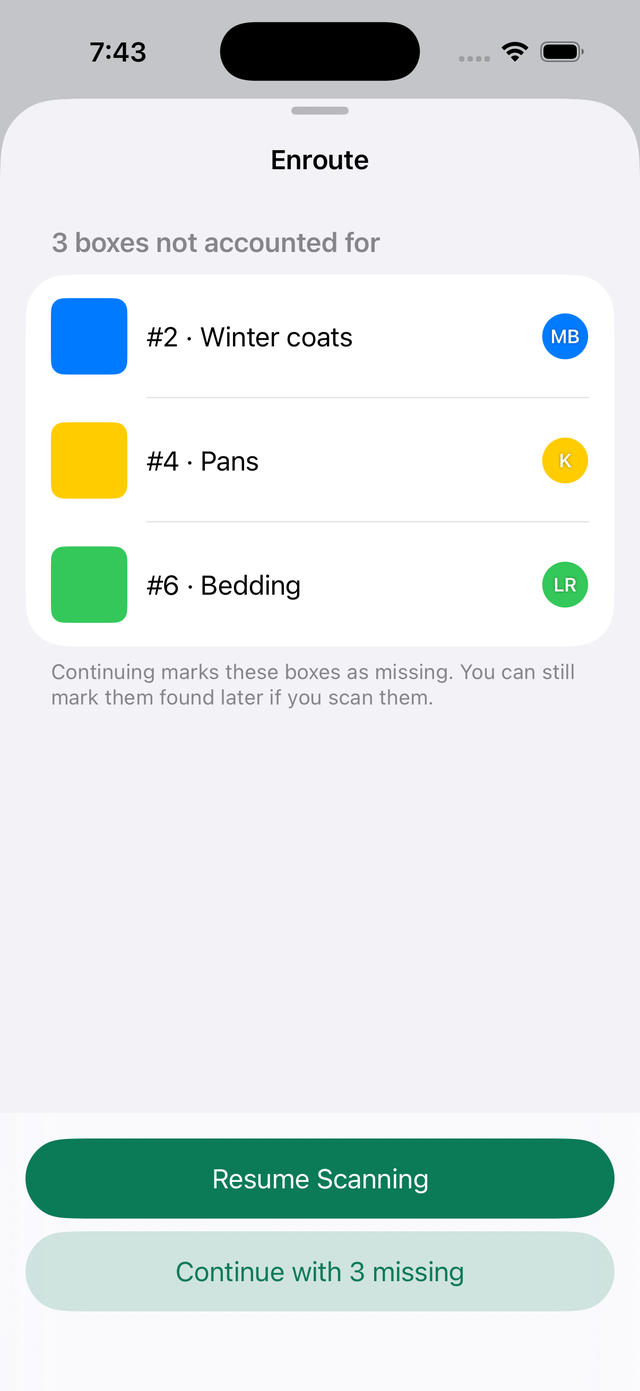
Three boxes aren't accounted for. Keep scanning, or continue and mark them missing. - Screenshot: After unloading
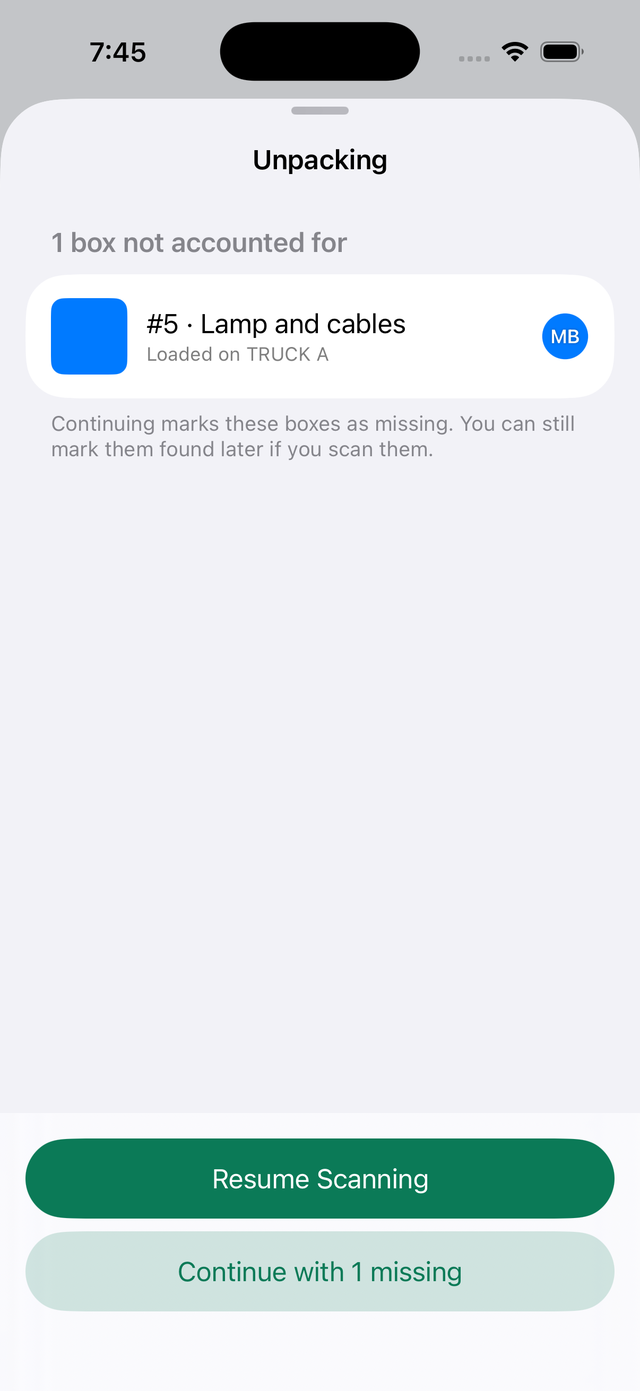
The box that didn't arrive, and the truck it was loaded on. - Screenshot: Missing boxes
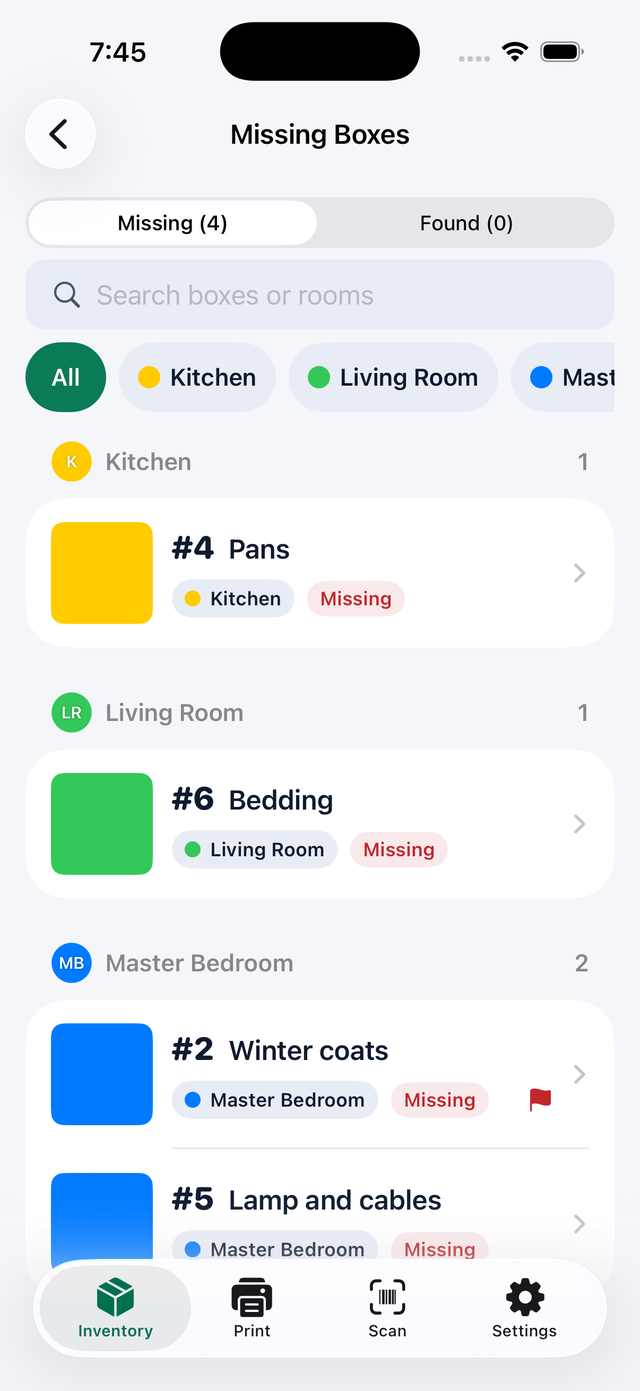
Everything still missing, grouped by room.
Your boxes stay yours
- No account to create and nothing to sign in to.
- No ads, no analytics and no tracking.
- Photos, rooms and scans are stored on your iPhone.
- iCloud sync uses your own private iCloud, and you can turn it off.
Read the full privacy policy.
Questions
Do I need an account?
No. There's no sign-up, no ads and no tracking. Your boxes live on your iPhone.
Where is my data?
On your iPhone: boxes, photos, rooms and scans. While iCloud sync is on, which is the default, a copy also lives in your own private iCloud. You can turn sync off in Settings.
Are my photos uploaded to work out suggestions?
No. Suggestions are worked out on your iPhone.
Do I need a printer?
Printing is the easiest way, with AirPrint or a shared PDF. Without one, you can still add boxes, and type a box number on the Scan tab instead of scanning a label.
What does it cost?
Free to try with one room and up to 20 boxes, every feature included. A one-time unlock (currently $4.99 in the US) covers your whole move. No subscription. You can also try a sample move before using your own boxes.
Does it work on iPad or Android?
Not yet. Lading is for iPhone only.
What if a label won't scan?
Hold the phone 6 to 12 inches away in good light with the label flat, use the flashlight button, or tap Type number and enter the number printed on the label.
More answers are in the user guide.
Support
Something not working, or a move that needs a feature Lading doesn't have yet? Write to me.
Tell me your iPhone model, your iOS version and the Lading version (shown in Settings), and what you were doing when it happened. Please don't send photos of your belongings unless I ask.