Most moves go wrong in a quiet way. Nothing gets dropped on the driveway. A box just isn't where you expect it, and you can't tell whether it never left the old place, rode on the truck, or is sitting in the wrong room.
I'm building Lading, a moving box tracker for iPhone, so I've spent a lot of time on this problem. The method below works with an app, and it also works with a notebook and a marker.
Give every box a number, not just a room
"Kitchen" on the side of a box tells you where it goes. It doesn't tell you whether it's there. A number like 7 of 42 does both: it tells you how many boxes exist, and it lets you count them off. Lading prints a big number on every label, plus a short code.
Use a QR code so the number can't be misread
A QR code means a phone camera reads the box instead of a tired person reading handwriting at the end of a long day. Scan the label and the box is accounted for. Keep the printed number on the label too. If a code is smudged or torn, you can type the number in instead.
Put two labels on every box
One label gets scuffed, covered by another box, or peeled off. Put two on every box, on two adjacent sides, on flat panels and away from tape seams. If you're reusing boxes, cover the old shipping labels. Use matte tape over a label, because glossy tape causes glare that can stop it scanning.
Give each room a color
Color is faster than reading. Each room gets its own color, and the labels match. Print one big door sign per room in the same color and tape it up at the new home before unloading, so the people carrying boxes can see where each one goes. In Lading, the screen flashes the room's color and name for a second as you scan a box off the truck.
Photograph the open box
Take a photo of each box before you tape it shut, with the contents showing. Then you can see what's inside without opening it. Lading lets you add up to five photos per box and suggests a short description like Kitchen or Books, worked out on your phone, so the photos aren't uploaded for it. Contents aren't printed on the label unless you turn that on, so a box doesn't advertise what's in it.
Scan on, scan off
This is the step that makes the rest worth doing. Scan each box as it goes onto the truck, and scan it again as it comes off at the new home. Anything that was loaded but never scanned off is your missing list, with the truck it was on. A box scanned twice isn't counted twice.
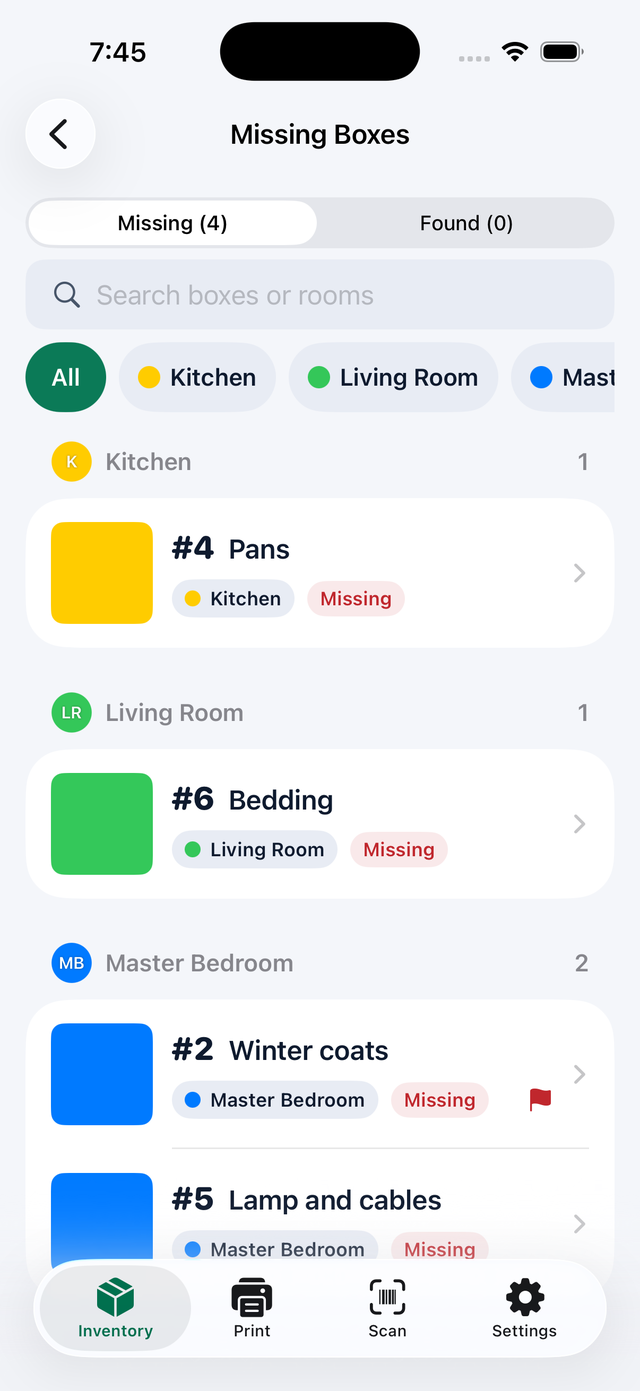
Without the second scan, you find out a box is missing when you go looking for the thing that was in it. With it, you know before the truck has left the driveway.
If you'd rather not use an app
The same method works on paper:
- Number every box out of the total, like 7 of 42.
- Put the number on two sides of each box.
- Use a colored marker or tape for each room.
- Keep a written list with one line per box.
- Count at both ends: when the boxes go on the truck, and when they come off.
Trying Lading
Lading is free to try with one room and up to 20 boxes, with every feature included. Lading Pro is a one-time $6.99 purchase for a whole move, with no subscription. There's no account, and your boxes stay on your iPhone and your own iCloud. It's on the App Store for iPhone with iOS 26 or later.
You can read more on the Lading page, follow the user guide, or get Lading on the App Store.